Image to Video Generator Online

Upload a photo, product shot, artwork, or reference frame and turn it into a short AI video with guided motion, camera movement, and model settings in one Toolaze workflow.

How to Turn an Image Into a Video

1

Upload a Clear Image

Start with a sharp product photo, portrait, artwork, logo mockup, interior shot, or storyboard frame. The cleaner the image, the easier it is for the model to preserve the subject.

2

Describe One Main Motion

Write a prompt with the subject action, camera move, lighting, pacing, and output format. Use one clear motion first, then refine after the draft is stable.

3

Choose Settings and Generate

Compare supported image-to-video models by reference limits, duration, resolution, audio support, and estimated credits before creating the clip.

Image to Video Prompt Templates

Use these 16:9 reference-image prompts to test subject preservation, controlled camera movement, and Grok image-to-video motion quality.

Product Photo Animation

Start from the uploaded 16:9 product photo and create a short marketplace-ready motion clip. Preserve the diffuser shape, ceramic texture, three-quarter angle, pedestal placement, and warm beige studio lighting while adding a controlled half-turn, soft shadow movement, a subtle foreground light sweep, and a clean final product hold.

Reference Image
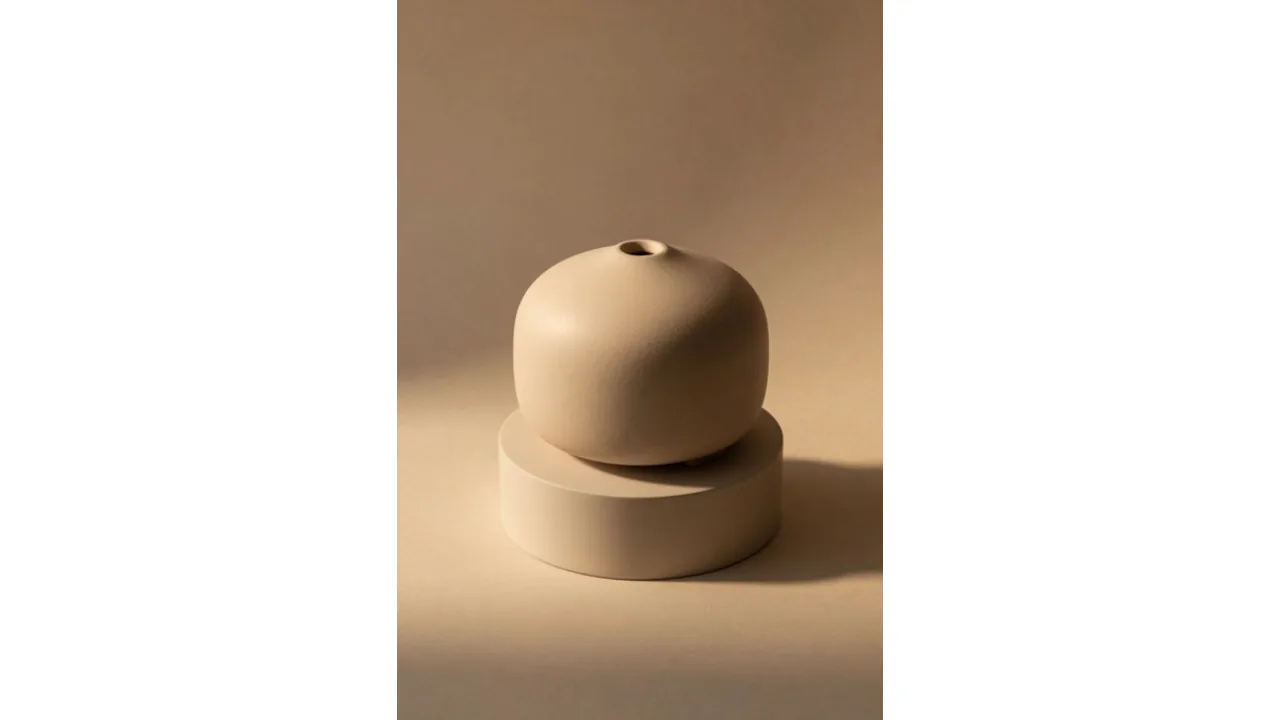
Product Photo Animation reference image

Result Video

Social Short From a Reference Image

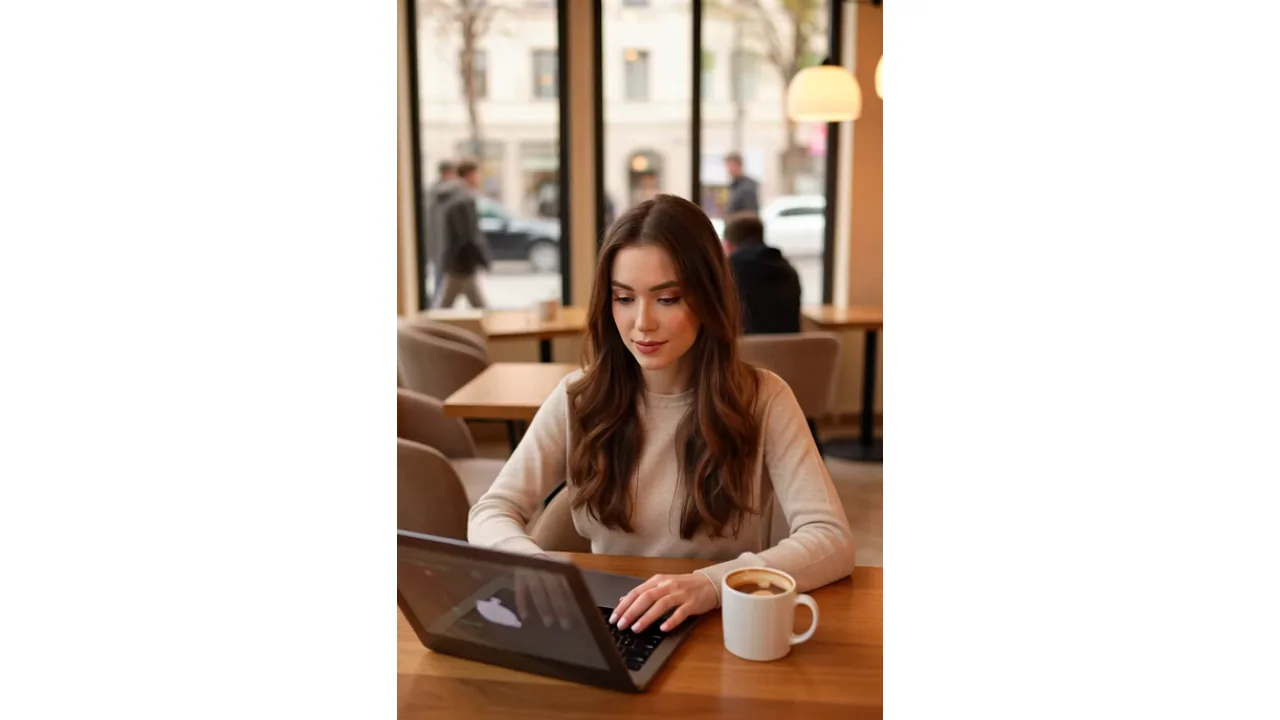
Use the uploaded 16:9 creator lifestyle image as the visual anchor for a horizontal social clip. Keep the face, outfit, cafe window setting, laptop, and warm daylight recognizable while adding a small camera push-in, natural handheld micro-movement, slight background motion outside the window, and one clean ending frame for a cover.

Reference Image

Social Short From a Reference Image reference image

Result Video

Storyboard Frame to Cinematic Clip

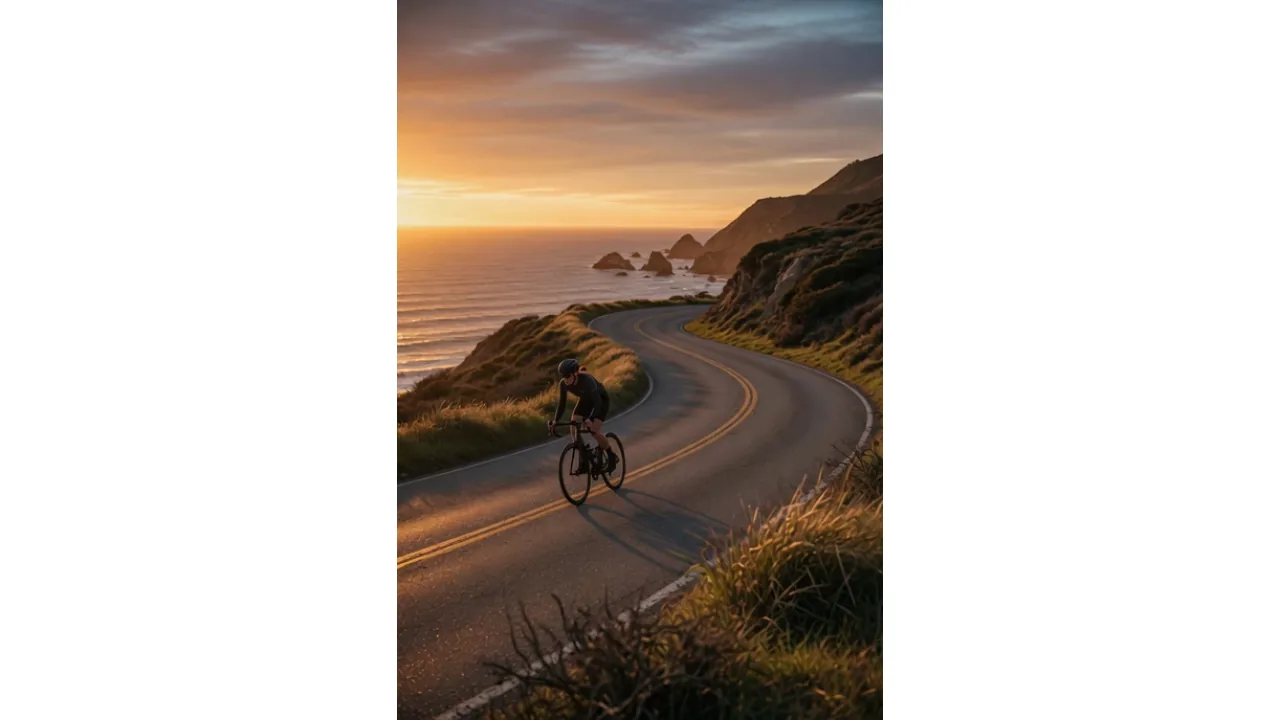
Turn the uploaded 16:9 coastal cyclist storyboard frame into one continuous cinematic shot. Preserve the rider scale, road curve, ocean horizon, golden-hour lighting, and wide composition while adding background parallax, a slow lens drift, light wind in the scene, and a final frame that still matches the original board.

Reference Image

Storyboard Frame to Cinematic Clip reference image

Result Video

Ad Concept From a Still Image

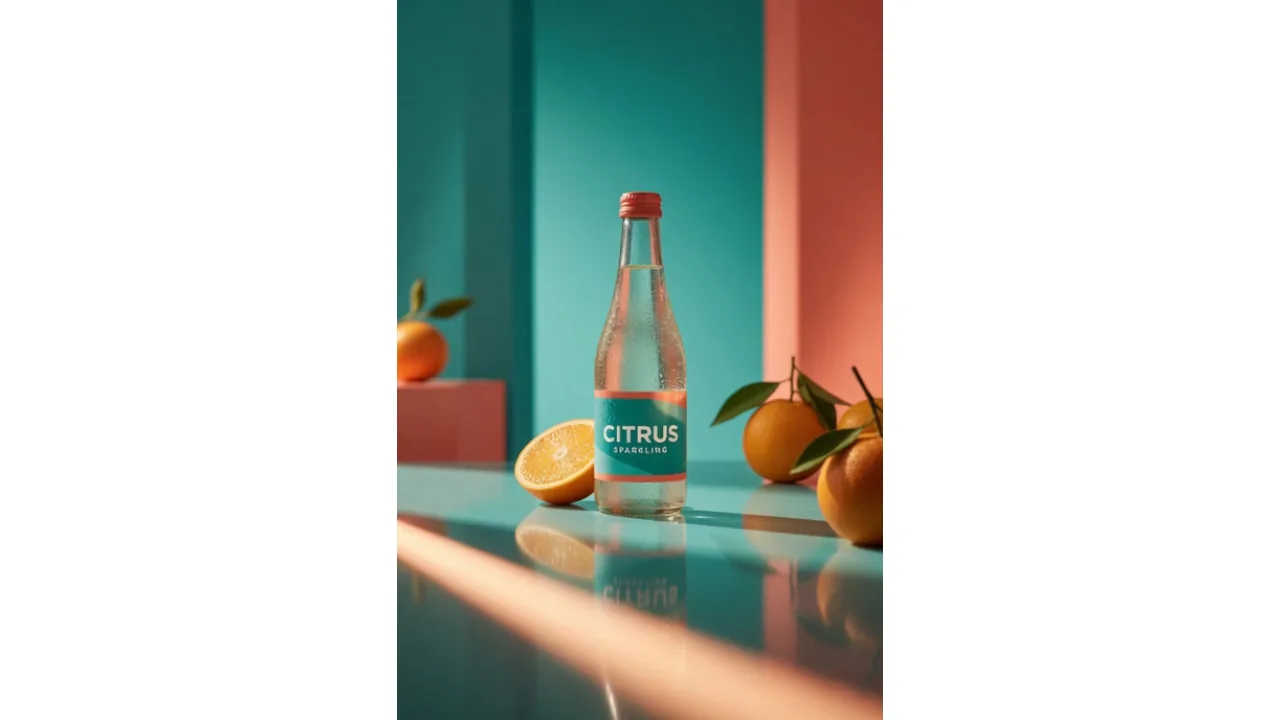
Use the uploaded 16:9 campaign still as the source frame for a 5-second ad motion test. Lock the bottle shape, citrus props, reflective tabletop, teal and coral panels, and product scale, then add a slow push-in, foreground light sweep, subtle condensation sparkle, reflection movement, and a brand-safe final hold.

Reference Image

Ad Concept From a Still Image reference image

Result Video

Create AI Videos From a Reference Image

An image to video generator uses your uploaded image as the visual anchor, then adds motion, camera direction, lighting changes, and timing from your prompt. It is useful when the first frame matters: product photos, portraits, artwork, interior shots, thumbnails, ad concepts, and storyboard frames.

Toolaze keeps the image-to-video workflow focused on practical controls. Upload a clear image, write one motion-first prompt, choose a supported video model, and review duration, resolution, audio support, reference limits, and estimated credits before generating.

Image to Video Generator

AI Video Tool

Reference-First Video Creation

Use a still image to preserve the subject, composition, product shape, character identity, or visual style while adding motion.

Motion Prompt Guidance

Describe camera movement, subject action, lighting, pacing, and final framing so the clip has a clear direction.

Multi-Model Comparison

Compare supported Toolaze video models by input type, reference count, duration, resolution, audio support, and estimated credits.

Image to Video Model Settings

Performance MetricToolaze Specification
Grok 1.5 VideoSingle-reference image-to-video drafts; 1–15 second clips; 480p or 720p output; estimated 3+ credits
Seedance 2.0Image-guided or prompt-guided clips; up to 9 references; 5/10/15 second durations; 480p through 4K; estimated 150+ credits
Seedance 2.0 MiniLower-credit image-to-video iteration; up to 9 references; 5/10/15 second durations; 480p or 720p; estimated 75+ credits
Kling 3.0Image-to-video and text-to-video workflows; up to 4 references; 3–15 second clips; 720p through 4K; Native Audio at 720p/1080p; estimated 60+ credits

Choose the Right Image-to-Video Model

Pick a model based on how many references you need, how long the clip should be, and whether resolution or audio matters most.

Grok logo
Fast single-image drafts

Grok 1.5 Video

Use Grok when you want a quick image-guided draft from one reference image and 480p or 720p output is enough.

Best for product movement tests, creator clips, thumbnail animation, and fast visual experiments.

ByteDance logo
Reference-heavy concepts

Seedance 2.0

Use Seedance 2.0 when a scene needs several reference images, longer clips, or higher-resolution output options.

Best for product sets, character continuity, storyboard variations, and detailed campaign concepts.

ByteDance logo
Lower-credit iteration

Seedance 2.0 Mini

Use Seedance 2.0 Mini for early drafts while testing references, prompts, aspect ratios, and motion direction.

Best for prompt tuning before spending more credits on a final pass.

Kling logo
High-resolution motion or audio

Kling 3.0

Use Kling 3.0 when the clip needs high-resolution output or Native Audio in a supported setting.

Best for polished concept clips, cinematic motion, and audio-aware video tests.

How to Get Cleaner Image-to-Video Results

Most failed image-to-video attempts come from blurry source images, too many motion instructions, or weak preservation prompts.

Name what must stay fixed

The subject changes too much

Tell the model to preserve the subject shape, face, logo, label, clothing, colors, camera angle, and background elements that matter.

Try: Preserve the exact product shape, front label, silver rim, and three-quarter camera angle.

Use one action

Motion looks chaotic

Start with one subject action and one camera move. Add secondary effects only after the core movement is stable.

Try: The subject stays centered while the camera makes one slow push-in.

Improve the source

The clip looks soft

Use a clean, high-resolution image with clear edges and simple lighting before increasing output settings.

Try: Keep the uploaded label readable, hold the camera angle, and add only one soft light sweep.

Draft before final

The first draft is expensive

Test the motion with a shorter or lower-resolution draft, then spend more credits only when the direction works.

Try a 5-second draft, review subject stability, then increase resolution or duration.

Popular Image to Video Use Cases

πŸ›’

Product Photos and Ecommerce Ads

Turn packaging shots, marketplace images, mockups, and campaign stills into short product videos with controlled rotation, reflections, and lighting.

πŸ‘€

Portraits and Character References

Animate a portrait, avatar, or character sheet with subtle motion while keeping identity, clothing, colors, and composition consistent.

🎨

Artwork, Posters, and Thumbnails

Add parallax, atmospheric motion, camera drift, or spotlight movement to static art, title cards, and social thumbnails.

🎬

Storyboards and Pre-Production

Convert a single storyboard frame into a short shot test for camera movement, pacing, lighting, and scene direction before production.

πŸ’»

UI Mockups and Product Demos

Animate website screenshots, app mockups, dashboard concepts, and feature screens with subtle camera motion while keeping interface details readable.

🏠

Real Estate and Interior Visuals

Turn room photos, exterior shots, staging concepts, and renovation references into short walkthrough-style clips with stable layout and natural light movement.

Image to Video Generator FAQ

What is an image to video generator?+

An image to video generator turns a still image into a short video by preserving the uploaded reference and adding motion, camera movement, lighting changes, and timing from your prompt.

What kinds of images work best?+

Use clear images with a recognizable subject, clean edges, and enough detail. Product photos, portraits, artwork, interiors, posters, thumbnails, and storyboard frames usually work better than blurry or crowded images.

Can I control the motion?+

Yes. Write a prompt that describes one main action, one camera move, lighting, pacing, and the final frame. Simple motion instructions are usually more stable than long prompts with competing actions.

Which Toolaze model should I choose for image to video?+

Use Grok 1.5 Video for quick single-image drafts, Seedance 2.0 for reference-heavy scenes, Seedance 2.0 Mini for lower-credit iteration, and Kling 3.0 when supported high-resolution output or Native Audio matters.

Is image-to-video generation free on Toolaze?+

Toolaze may provide free credits or selected trials depending on the current access policy. The generator shows model and credit requirements before you create a video.

How is this different from the Seedance image-to-video page?+

This page is for the general image-to-video workflow across supported Toolaze video models. The Seedance page focuses on Seedance 2.0-specific settings and examples.