Show the full crown
Do not crop the top of the head or cover it with hats, hoods, hands, or heavy shadows.
Upload one clear portrait and preview a fully shaved-head version of yourself. Bald is selected by default, preset text stays hidden, and the page focuses on scalp shading, head shape, hairline realism, eyebrows, and facial-hair preservation rather than general short-hair browsing.


Image 1: upload the portrait you want to edit.
Use a sharp photo where the crown, temples, hairline, eyebrows, ears, beard, and face are visible. Avoid hats or cropped foreheads.
Bald is already selected, so the first result uses a shaved-head instruction that removes head hair while preserving eyebrows and facial hair.
Look closely at forehead height, scalp shading, temples, ear area, beard contrast, and whether the head outline still feels natural.
An AI bald filter removes visible head hair in a portrait and rebuilds the scalp area so you can judge head shape, forehead balance, beard contrast, and eyebrow framing before making a real change. It is meant for shaved-head and bald-look decisions, while Buzz Cut Filter is better when you still want visible clipper-length hair.
The default preset focuses on a fully shaved head, realistic scalp tone, hairline cleanup, and natural head shape instead of a generic haircut swap.
The hidden instruction asks the edit to keep eyebrows, facial hair, age, expression, clothing, lighting, and background stable while removing head hair.
Open the tool, upload one portrait, and test whether a shaved-head look suits you before committing to clippers or a razor.
A bald preview depends on scalp reconstruction and head shape, so the photo should reveal the full outline of the head.
Do not crop the top of the head or cover it with hats, hoods, hands, or heavy shadows.
Side hair, ears, and temple areas help the edit rebuild a believable shaved-head outline.
Use a photo where eyebrows, beard, mustache, or clean-shaven jawline are sharp, because those details change how bald looks on the face.
Very strong top light can make scalp shading look too shiny or uneven after editing.
Yes. You can open the image tool, upload a portrait, and preview a shaved-head look without signing up. This is not an unlimited-use promise; generation limits or model availability may still apply.
Bald Filter is for a fully shaved or hairless head preview. Buzz Cut Filter is for very short visible hair, clipper length, and barber-cut comparisons.
Yes. The Men tab opens first and Bald is the selected preset, so the first generation uses the built-in shaved-head instruction.
No. For built-in presets, Toolaze sends your uploaded portrait plus the hidden hairstyle prompt. The preset card image is only a visual choice card.
The built-in bald prompt asks the edit to remove visible head hair while preserving eyebrows, beard, mustache, and face details. Results can vary, so use a clear portrait.
No. It is a visual concept. Real results depend on scalp tone, hairline, head shape, shaving method, lighting, and how facial hair frames the face.
Yes. Use it to explain that you are considering a shaved-head look, then ask a barber whether your head shape and hairline suit the change.

Try visible clipper-length hair if you want a shorter cut without going fully bald.
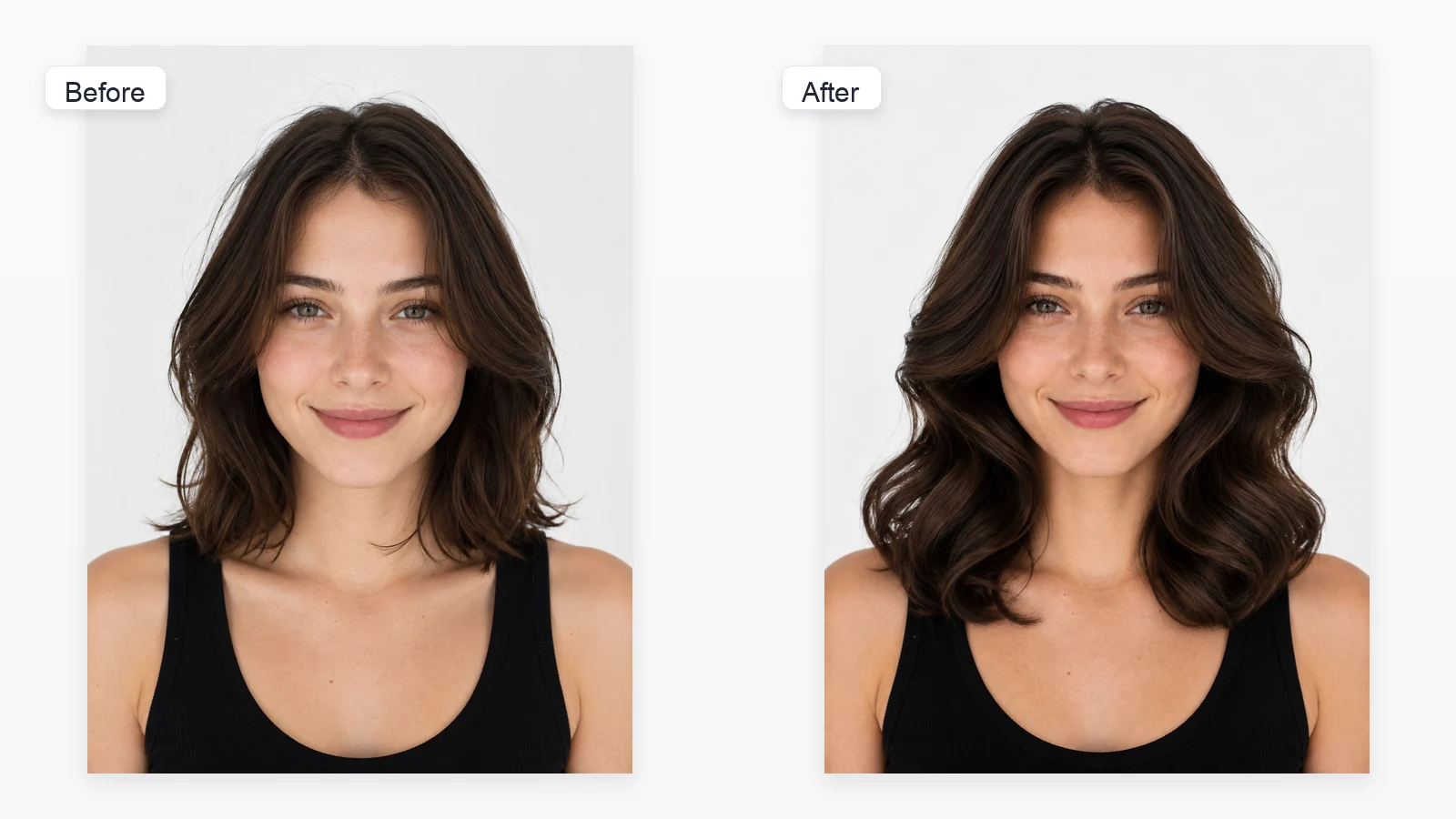
Explore longer, textured, curly, and other haircut directions from one portrait.
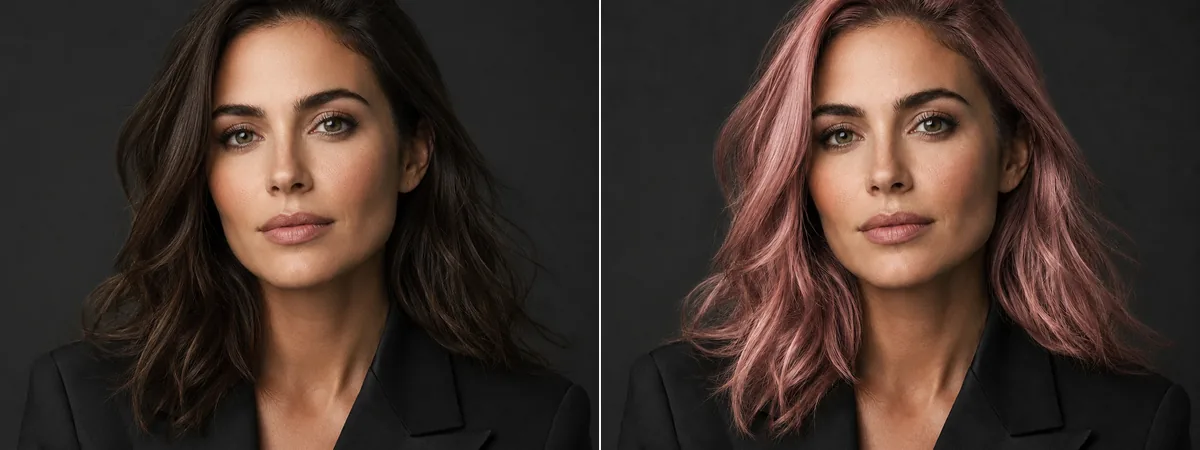
Keep your haircut and preview a different natural or creative hair color.