
Poster lancio prodotto
Crea un poster pulito con headline leggibile, prodotto hero, area offerta e composizione campagna rifinita.
Crea un’immagine dalle parole e migliorala con soggetto, composizione, luce, regole di testo e obiettivo di revisione più chiari. Usalo quando non hai ancora un’immagine di riferimento.

Un generatore di immagini IA trasforma prompt testuali, immagini di riferimento o istruzioni di editing in nuovi visual. Può creare direttamente nel browser foto realistiche, mockup prodotto, poster, thumbnail, ritratti, illustrazioni, concept UI e grafiche social.
Toolaze funziona come generatore di immagini IA gratis online e hub per scegliere il modello. Parti da un prompt semplice, carica una reference quando serve e scegli il modello adatto a testo più leggibile, staging prodotto, editing, varianti rapide o layout commerciali rifiniti.
Usalo per creare immagini pratiche: prodotti, listing ecommerce, annunci paid, post social, thumbnail YouTube, concept di campagna, grafiche per presentazioni, idee personaggio, riferimenti di design e bozze per review cliente.
Esplora risultati comuni che puoi creare con Toolaze: immagini marketing, visual prodotto, concept UI, grafiche educative, ritratti, thumbnail ed editing guidato da reference.
Crea un poster pulito con headline leggibile, prodotto hero, area offerta e composizione campagna rifinita.

Genera annunci social d’impatto con copy breve, forte contrasto, beneficio chiaro e layout adatto al mobile.

Bozza schermate app, pannelli dashboard, card onboarding o panoramiche feature per esplorazione design iniziale.

Trasforma un’idea o reference prodotto in immagine marketplace più pulita, scatto lifestyle, visual bundle o listing stagionale.

Crea concept di thumbnail con soggetto chiaro, composizione espressiva, testo breve leggibile e forte contrasto.

Crea visual di studio, diagrammi scientifici, spiegazioni storiche, chart di processo e grafiche per classe con etichette.

Genera ritratti, avatar creator, idee personaggio, immagini profilo, studi di stile e reference visive per storytelling.

Carica una reference e cambia sfondo, luce, composizione o stile mantenendo stabile il soggetto principale.
Crea un’immagine in pochi passaggi, poi migliora il risultato con prompt più chiari, immagini di riferimento o un modello diverso.

Passo 1
Descrivi tipo di asset, soggetto, scena, stile, mood, proporzione e qualsiasi testo che deve apparire nell’immagine.

Passo 2
Aggiungi una reference se vuoi preservare prodotto, volto, oggetto, posa, layout, stanza, schizzo o direzione visiva.

Passo 3
Seleziona un modello in base al lavoro: generazione testo in immagine, editing, prodotto, annunci social o varianti rapide.

Passo 4
Controlla ortografia, volti, mani, claim di brand, dettagli prodotto e composizione prima di usare l’immagine pubblicamente.

Passo 5
Modifica una parte del prompt alla volta, cambia modello se serve o carica una reference più forte per un output più controllato.
Passa dall’idea alla bozza visual per asset business, contenuti creator, esplorazione design e review cliente veloce.
Genera poster lancio prodotto, concept paid social, mockup ecommerce, idee packaging e immagini campagna stagionali.
Crea thumbnail YouTube, cover TikTok, grafiche Instagram, post creator, immagini reaction e formati pronti da condividere.
Crea concept profilo, schede personaggio, ritratti stilizzati, avatar e direzioni creative facili da usare come reference.
Bozza poster evento, grafiche quote, cover presentazione, layout editoriali e design brevi ricchi di testo.
Esplora schermate app, visual landing page, moodboard brand, grafiche feature e prime direzioni design.
Parti da testo o carica una reference, poi cambia sfondo, stile, luce, composizione o uso finale.
Crea infografiche, diagrammi didattici, visual di processo, aiuti studio, chart con etichette e grafiche per presentazioni.
Modifica foto prodotto, cambia sfondi, reinterpreta stanze, migliora luce, crea varianti e trasforma reference grezze in bozze rifinite.
Copia un prompt, incollalo nel generatore, poi adatta soggetto, stile di brand, formato e modello alla tua immagine.
Create a premium product launch poster for a fictional sparkling water brand called "Luma Fizz". Show one can as the hero product, cold condensation, citrus slices, bright studio lighting, clean white and indigo background, readable headline text "FRESH SPARK", small subtitle "Citrus sparkling water", polished commercial ad layout, 4:5 vertical poster.

Create a bold YouTube thumbnail for a video titled "5 AI TOOLS I USE DAILY". Use a clean tech background, one expressive creator portrait, five floating app-style cards, large readable text, strong contrast, bright rim lighting, modern creator economy style, 16:9 composition.

Create a square social media ad for a productivity app. Show a clean phone mockup with a simple task dashboard, a bright desk scene, and the headline "Plan Your Day in Minutes". Use friendly modern typography, high contrast, and a layout that works on mobile feeds.

Use the uploaded product photo as the reference. Preserve the product shape, logo placement, and camera angle. Change only the background into a premium marble bathroom scene with soft daylight, clean reflections, luxury skincare styling, and natural shadows.

Create a clean ecommerce product image for a reusable water bottle. Show the bottle standing upright on a white background with soft shadows, three small feature callouts, and a premium marketplace-ready look. Keep the image uncluttered and realistic.

Create a modern SaaS analytics dashboard mockup for a fictional product named "PulseDesk". Include readable labels, left sidebar navigation, three metric cards, a line chart, a campaign table, calm white background, indigo accent color, realistic product UI screenshot style.

Create a character reference sheet for an original adventure game courier named Mira. Show front view, side view, back view, three facial expressions, one backpack prop, color palette, and clothing details. Keep the same character identity across every panel.

Create a clear educational infographic explaining how solar panels work. Include labeled sections for sunlight, photovoltaic cells, inverter, battery, and home power. Use simple icons, readable short labels, clean spacing, friendly science classroom style.

La maggior parte degli utenti inizia con testo in immagine per esplorare rapidamente, poi passa a immagine in immagine quando serve più controllo. Toolaze combina entrambi i flussi con la scelta del modello.
Usa Toolaze quando ti serve più di un’immagine decorativa. Crea visual da prompt, modifica con reference, confronta modelli e genera bozze per workflow reali di marketing, prodotto, design, educazione e contenuti.

Trasforma un prompt scritto in una nuova immagine. Descrivi soggetto, stile, layout, sfondo, luce, proporzioni e parole esatte da mostrare.

Carica un’immagine di riferimento e chiedi al modello di cambiare sfondo, stile, luce, scena, setup prodotto, composizione o direzione visiva mantenendo stabili i dettagli importanti.
Apri immagine in immagine
Crea immagini ecommerce, bozze per marketplace, scene lifestyle, mockup packaging, visual stagionali e immagini hero prodotto pulite.

Genera poster campagna, annunci paid social, grafiche evento, visual lancio, banner promo e layout commerciali con copy breve.
Vedi prompt annunci
Crea thumbnail YouTube, immagini hero per blog, post social, grafiche creator, concept profilo e hook visivi per lo scroll.

Passa tra i modelli supportati quando il prompt richiede testo più forte, editing con reference migliore, maggiore polish visivo, output più rapido o più variazione creativa.
Confronta modelliModelli immagine diversi sono migliori per lavori diversi. Scegli in base all’obiettivo: testo leggibile, prodotti, editing con reference, varianti rapide, bozze design rifinite o esplorazione creativa.
Ideale per prompt testo in immagine puliti, testo breve leggibile, poster, annunci prodotto, mockup UI e grafiche commerciali.
Prova GPT Image 2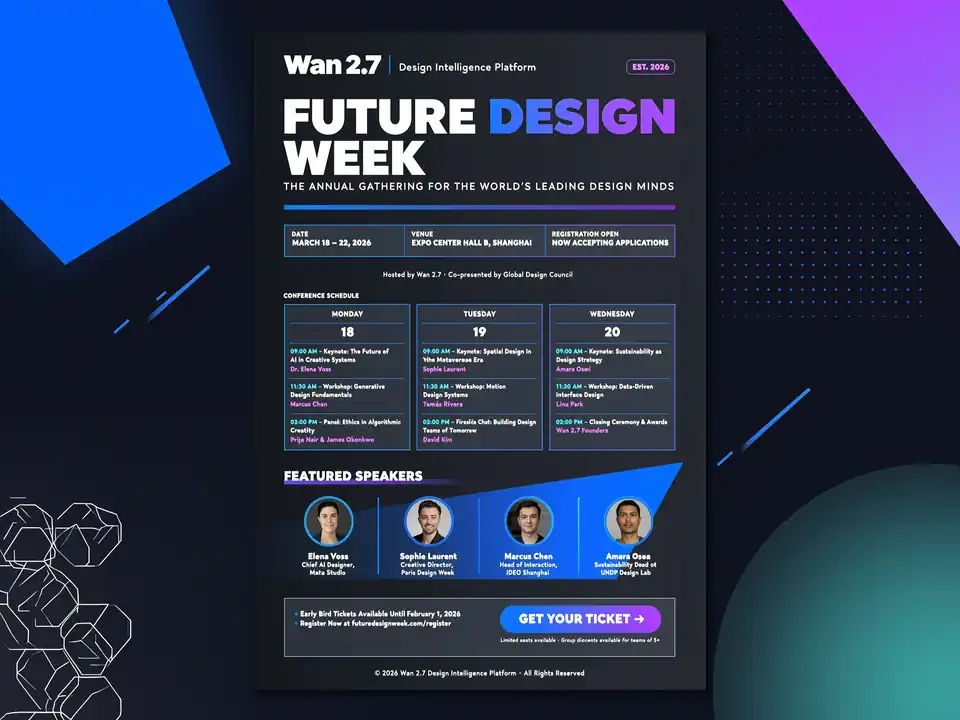
Ideale per prompt strutturati, editing multi-reference, layout ricchi di testo, ragionamento sul prompt e set di immagini.
Prova Wan 2.7 Image
Ideale per generazione di alta qualità, editing con reference, ritratti, scatti prodotto e bozze campagna rifinite.
Prova Nano Banana Pro
Ideale per generazione quotidiana veloce, varianti creative rapide, molte proporzioni e bozze immagine in immagine.
Prova Nano Banana 2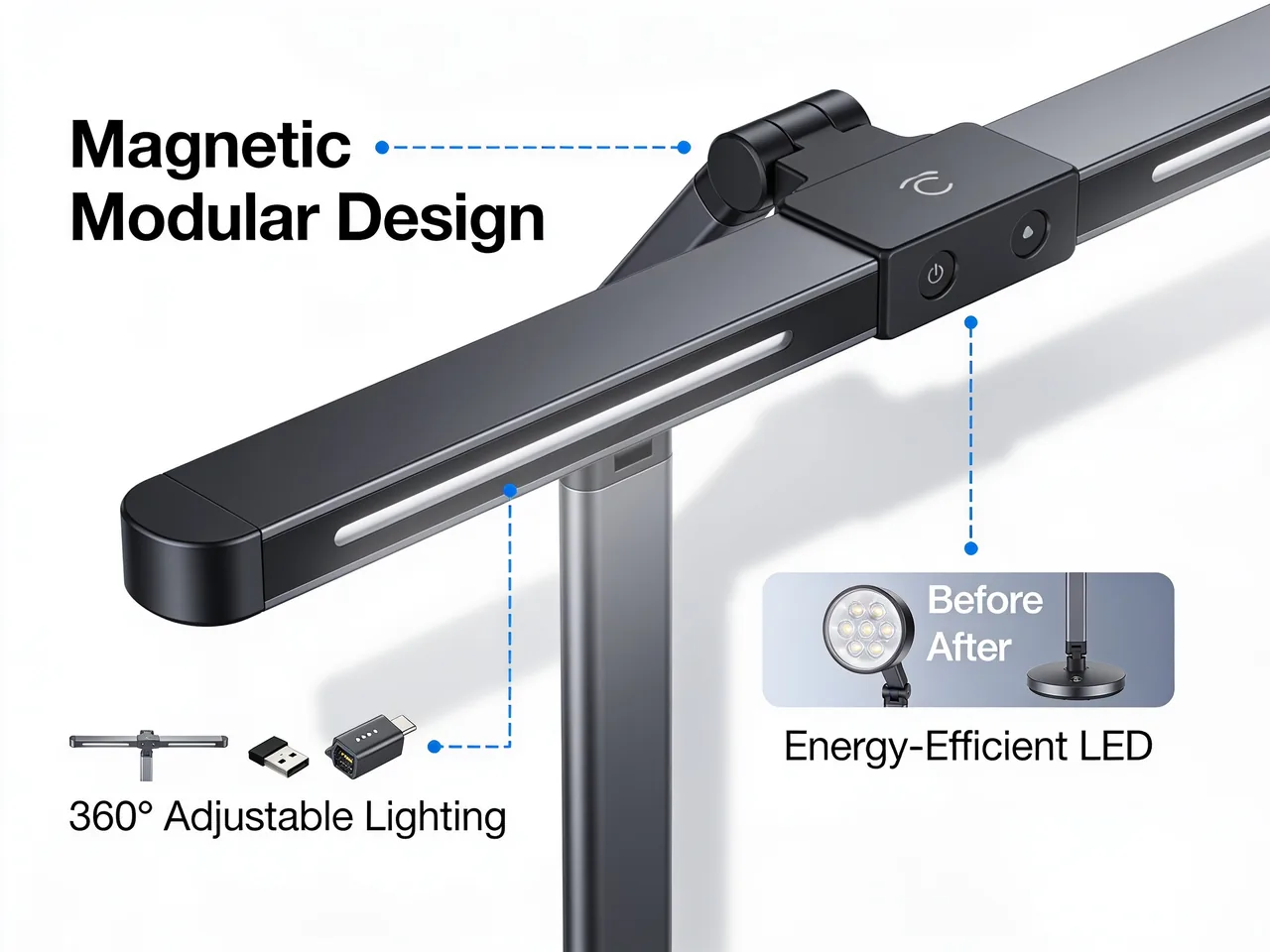
Ideale per visual prodotto commerciali, layout tipografici, aderenza al prompt e composizioni di marca.
Prova Seedream 4.5Ideale per workflow leggeri, idee campagna, bozze immagine ed esperimenti rapidi per creator.
Prova Seedream 5.0 LiteContinua con una pagina modello specializzata o esplora altri strumenti Toolaze quando il workflow richiede editing, compressione, conversione o confronto modelli.
Esplora altri strumenti IA per immagini, video, scrittura, produttività e workflow creativi.
Vedi strumenti IAConfronta i modelli immagine e video Toolaze per attività, stile output, famiglia modello e workflow creativo.
Vedi modelliCarica una reference, descrivi la modifica e crea varianti controllate, prodotti, cambi sfondo o restyle.
Modifica da immagineUsa GPT Image 2 per poster, annunci prodotto, testo leggibile, mockup UI e generazione strutturata.
Prova GPT Image 2Esplora strutture di prompt per immagini ricche di testo, visual prodotto, mockup UI e layout campagna.
Apri promptUsa template di prompt per lanci prodotto, campagne social, creatività paid e concept thumbnail.
Vedi pubblicitàConverti immagini IA scaricate tra JPG, PNG, WebP e HEIC per workflow di pubblicazione.
Converti immaginiComprimi immagini generate per pubblicazione web, ecommerce, upload social e caricamento più rapido.
Comprimi immaginiRisposte su prompt, crediti, testo visibile, riferimenti e bozze commerciali.
Crea una nuova immagine dalla descrizione di soggetto, scena, stile, luce, composizione, formato e breve testo visibile.
I nuovi utenti ricevono 20 crediti gratuiti dopo la registrazione. Il numero di immagini dipende da modello e risoluzione; il costo esatto appare prima di generare.
Definisci tipo di asset, soggetto, sfondo, stile, luce, composizione, rapporto, testo esatto e uso finale.
Le frasi brevi sono più affidabili. Metti il testo esatto tra virgolette, indica la posizione e controlla l’ortografia.
Usala se devi mantenere riconoscibili prodotto, volto, posa, ambiente, confezione o composizione.
Possono servire come bozze commerciali se rispetti diritti, marchio, piattaforma e legge. Controlla il risultato finale prima di pubblicare.
Usa Toolaze AI Image Generator per creare immagini da testo, modificare con reference, confrontare modelli IA e produrre visual pratici per prodotti, annunci, thumbnail, social media, educazione e design.
Avvia testo in immagine